|
| • Launching FastLane software |
| • Accessing User Interface |
| • Changing Pop-up Blocker Settings |
| • Blocking in-page advertisements |
| • Changing Image Quality Settings |
| • Changing Password in Connection Settings |
| • Accelerating Email |
| • Viewing Acceleration Statistics |
| • Viewing FastLane Web Accelerator's Performance |
| • Starting & Stopping FastLane software |
| • Uninstalling FastLane |
| |
Installation of FastLane software
|
Installation of the Fastlane Software
1. Click on the download link and download the software installer on your
desktop.
2. Double click on the Fastlane Installer Icon on your desktop
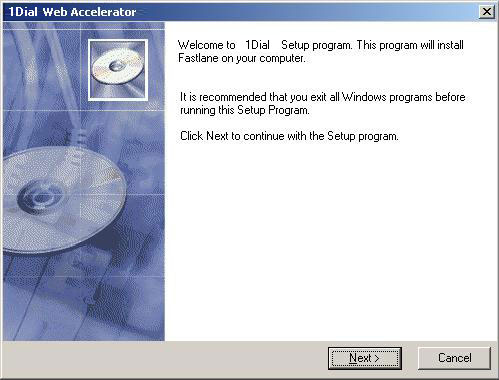
3. The installer will guide you through the setup process
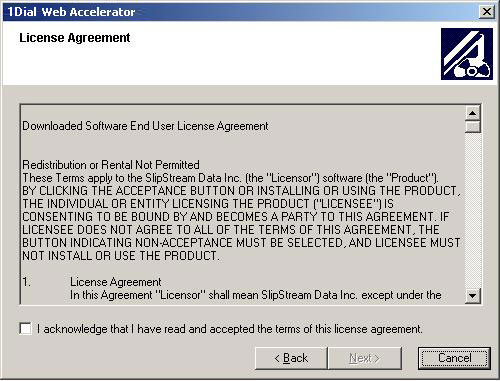
4. Click the white box at the bottom left to agree and click
Next.
5. Installation of software will complete
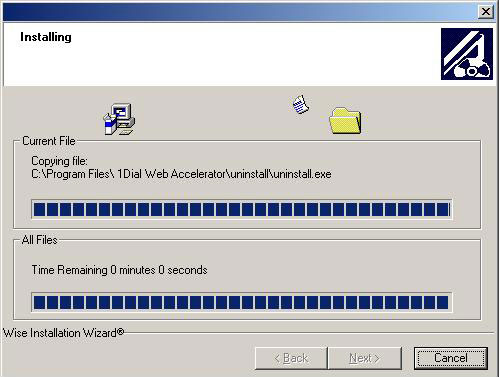
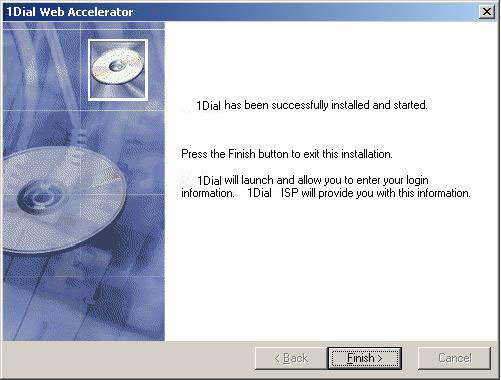
6. Click Finish to continue
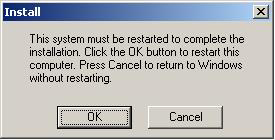
7. You will be prompted to restart your computer. Please make
sure you close anything you may be running on your computer and hit OK
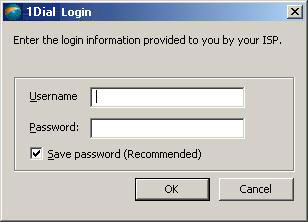
8. After your computer restarts this login window will appear.
Enter your username and password. Your username is your 550access email address
i.e. yourusername@550access.com
Check the "Save Password" option to avoid having to enter the username and
password each time you use the software.
Note that if you change your 550access password you will also need to enter
and save your new password in the connection settings of the Fastlane software
If you receive the following message, either Fastlane has
already been installed on your computer from a previous ISP or you have
installed it twice. Remove any programs that may contain Fastlane or other
Internet Accelerators and try again.

|
|
|
Launching FastLane software
|
FastLane launches automatically each time you start Windows. It operates in background to accelerate your Internet connection. No user intervention is required.
If FastLane is not running and you need to launch it manually, an icon titled "FastLane Web Accelerator" is located in the Windows Start Menu under the FastLane folder (as shown below).

If FastLane Web Accelerator is running, the FastLane taskbar icon will appear in the Windows system tray

|
|
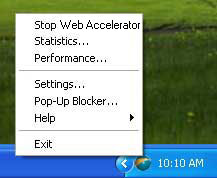
You can use the user interface to change settings, view connection status or acceleration statistics. To access the user interface features, click on the FastLane Web Accelerator icon in the system tray (shown above). A pop-up menu will appear (shown below), providing access to all the features of the product. Selecting and single-clicking any of the menu items will access that particular feature.
|
Changing Pop-up Blocker Settings
|
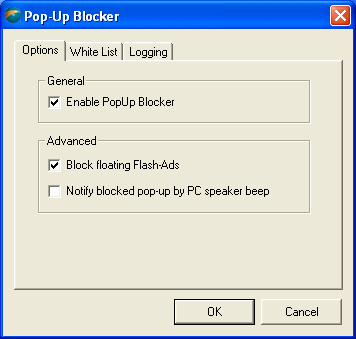
Pop-up blocker is enabled in default settings. To enable or disable the Pop-Up Blocker:
Right-click on the FastLane Web Accelerator system tray icon and select "Pop-Up Blocker".
Select the "Options" tab.
|
|
|
- If you would like to be notified any pop-up being blocked, check "Notify blocked pop-up by PC speaker beep".
- To enable the blocking of floating Flash advertisements, check "Block Floating Flash-Ads".
- To disable all pop-up blocking for all sites, uncheck "Enable PopUp Blocker".
- Press OK to save the settings.
|
To Disable the Pop-Up Blocker for Specific Sites
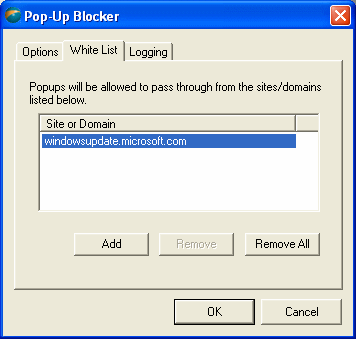
Select White List tab
Use the "Add", "Remove" and "Remove All" buttons to modify the White List.
|
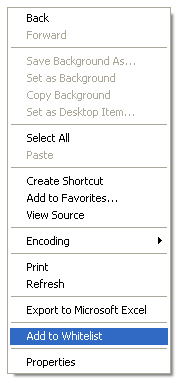
To add sites to the White List while surfing on Internet Explorer
Right-click on any text while browsing within Internet Explorer.
Select "Add to White list" from the menu to add the current site to the White List.
 |
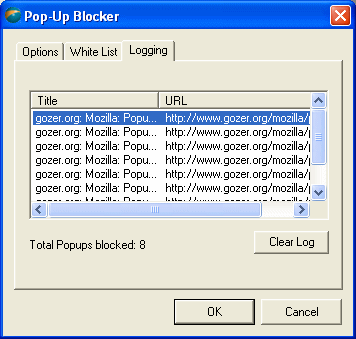
To view the Pop-Up blocker log
Select the Logging tab
|
Blocking in-page advertisements
|
| You can block many ad banners that appear on various web pages. Enabling this feature will prevent these ads from being downloaded and displayed in your browser. The Block In-Page Advertisements feature will thus reduce download time. |
| |
|
1. |
Right-click on the FastLane Web Accelerator system tray icon. |
2. |
Select "Settings". |
3. |
Select the "Features" tab. |
4. |
To enable ad blocking, check the "Block in-page advertisements" box. |
5. |
To disable ad blocking, uncheck it. Press OK to save the settings. |
|
|
|
|
Changing Image Quality Settings
|
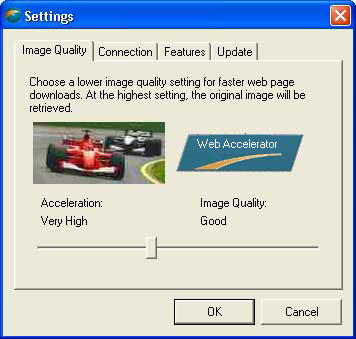
The image quality setting changes the quality of images that appear in your FastLane Web Accelerator. The higher the quality you select, the longer it will take the image to load. For slower Internet connections, it is recommended that you lower your image quality.
|
|
| You can easily view original image quality for any specific image even during surfing (as described below). |
| |
| Right-click on the FastLane Web Accelerator system tray icon. |
| Select "Settings". |
| Select the "Image Quality" tab. |
| Use the slider bar to adjust the image quality setting. |
| Press OK to save the settings. |
|
| |
 |
|
| |
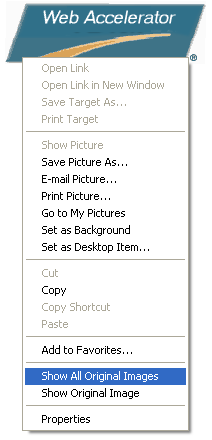
| While browsing on IE, if you would like to view the full quality image, simply right-click on the desired image and select "Show Original Image" from the menu. |
|
| If you want to see the full quality version of all images on the current page, simply right-click on any image from within Internet Explorer and select "Show All Original Images" from the menu. |
| |
|
Changing Passward in Connections Settings
|
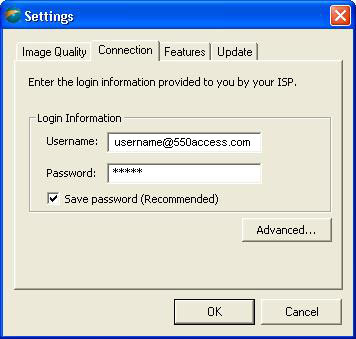
| If you change your 550Access password, you would need to enter the new password in the Connection Settings of FastLane. |
| |
1. |
Right-click on the FastLane Web Accelerator system tray icon. |
2. |
Select "Settings". |
3. |
Click on Connection tab. |
4. |
Type in your new password |
5. |
Make sure that "Save Password" option is checked. Click OK to save. |
| |
 |
| |
|
|
FastLane can reduce the amount of time it takes to send and receive email. FastLane accelerates email transparently without any user intervention, so you can use your mail program exactly as you normally would. It is compatible with any POP3/SMTP client, including Outlook Express, Eudora and Netscape Mail. Email acceleration is disabled by default. |
| |
| To enable email acceleration: |
1. |
Right-click on the FastLane Web Accelerator system tray icon. |
2. |
Select "Settings". |
3. |
Select the "Features" tab. |
4. |
Check "Enable FastLane Email". |
5. |
Press OK to save the settings. The changes will take effect the next time FastLane and your mail client are restarted. |
| |
|
| |
|
Viewing Acceleration Statistics
|
You can view the acceleration statistics and how they change dynamically using the Statistics dialog. |
| |
| To enable email acceleration: |
1. |
Click on the FastLane Web Accelerator taskbar icon to access the pop-up menu. |
2. |
Select "Statistics..", to display the Statistics summary dialog. |
3. |
Click "Reset" to reset the statistics. You may do so at anytime while browsing without affecting FastLane's performance. |
4. |
Click the "Details" button to view more detailed statistics information (see below). |
| |
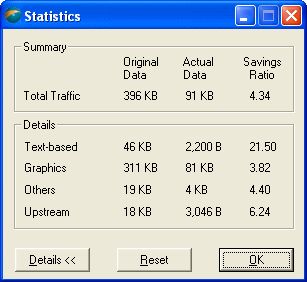
| Description of terms: |
Original Data |
Size of the original (uncompressed) data. |
Actual Data |
Amount of data sent by FastLane Web Accelerator. |
Savings Ratio |
Factor of reduction in data. E.g. A savings ratio of 4.00 means that the actual data being sent has been compressed to 1/4 the size of the original data. |
Text-based |
This row contains compression information regarding text-based content. |
Graphics |
Contains compression information regarding graphical content. |
Others |
Contains information regarding content that is neither text nor graphical. |
Upstream |
Lists the total original and compressed amounts of data uploaded. |
|
| |
|
Viewing FastLane Web Accelerator's Performance
|
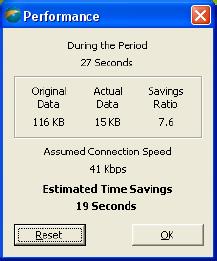
| You can view the accelerator's overall performance using the Performance dialog. |
| |
1. |
Click on the FastLane Web Accelerator taskbar icon to access the pop-up menu. |
2. |
Select "Performance", to display the Performance dialog. |
3. |
Click "Reset" to reset the statistics. You may do so anytime while browsing without affecting FastLane's performance. |
4. |
Click the "Details" button to view more detailed statistics information (see below).\ |
|
From this screen you can view the size of the original (uncompressed) data transferred through FastLane, the actual (compressed) size of the data, and your savings ratio. For example, a savings ratio of 4.00 means that the actual data being sent has been compressed to 1/4 the size of the original data.
Also this screen displays the speed of your connection and the estimated amount of downloading/uploading time saved by using the accelerator. Note that these two features are only available when using a dial-up connection.
|
|
| |
|
Starting & Stopping FastLane software
|
When FastLane Web Accelerator is launched it automatically connects. Occasionally, you may need to stop or start manually. |
| |
Stopping FastLane:
If you want to manually disconnect, right-click on the FastLane Web Accelerator system tray icon to access the pop-up menu. Select the menu item "Stop FastLane".
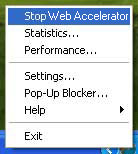
The icon used when FastLane Web Accelerator is disabled will appear on the system tray.

|
Starting FastLane:
If FastLane is stopped and you want to manually start, right-click on the FastLane system tray icon to access the pop-up menu. Select "Start FastLane".
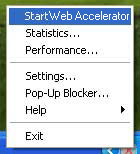
The icon used when FastLane Web Accelerator is disabled will now be replaced with the enabled icon.
|
Closing FastLane:
To close FastLane Web Accelerator:
Right-click on the FastLane Web Accelerator system tray icon and select "Exit" from the pop-up menu (see below). FastLane Web Accelerator will disconnect and close. Doing this will not close any open browser windows. |
Note: FastLane Web Accelerator will automatically launch again the next time you reboot your computer. |
|
|
| |
|
1. |
Under the Windows Control Panel, select "Add or Remove Programs". |
2. |
Select FastLane Web Accelerator and click Remove. |
3. |
The un installer will launch and guide you through the un installation procedure. |
|
|
|
|