Follow these steps to configure Outlook Express for use with for a 550access e-mail account:
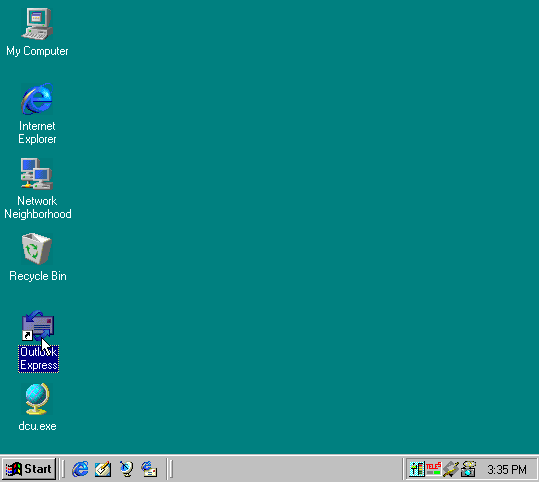
1. Double-click the Outlook Express icon on your desktop.
2. Outlook Express will start up. Select the Tools menu and then select Accounts.

3.In the Internet Accounts window, click Add, and choose Mail.

4. In the Your Name window, enter your name and click Next to continue.

5. When prompted for your e-mail address, leave the first option selected, and enter the address that you acquired when registering online. The e-mail address should end with '@550access.com'. Click Next to continue.

6. In the Incoming mail (POP3, IMAP or HTTP) server field, enter "pop.550access.com". In the Outgoing mail (SMTP) server field, enter "mail.550access.com". Click Next to continue.

7. In the Internet Mail logon window, type in your username and password (both of which will have been allotted during online registration). Click Next to continue

8. You have now set up a new mail account. Click Finish to close the Internet Connection Wizard

9. The Internet Accounts window is displayed, and the 550access pop account has been added. Click Close to close the Internet Accounts window.
 |