1.From Mozilla Thunderbird's Tools menu, select
Account Settings...

2. When the Account Settings window
appears, click the Add Account... button to continue.
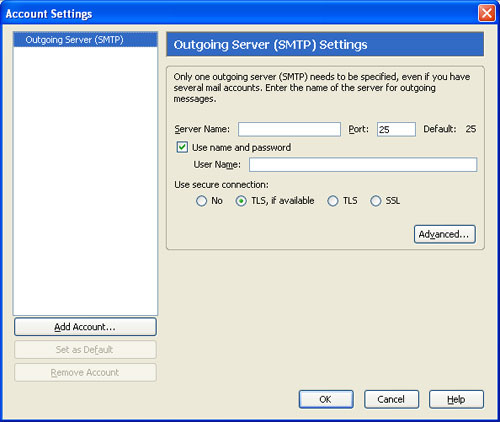
3. Click on Email account button and click the Next >
button

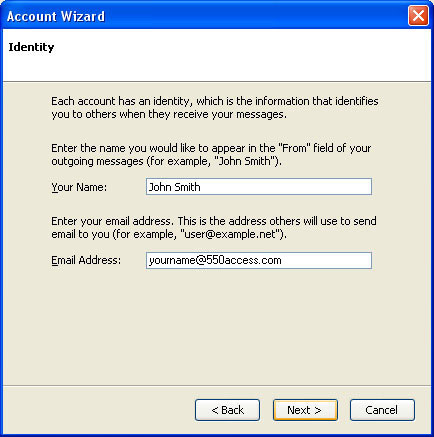
4. Fill in your personal information as shown below.
Substitute yourdomain for 550access.com. Click on the
Next > button
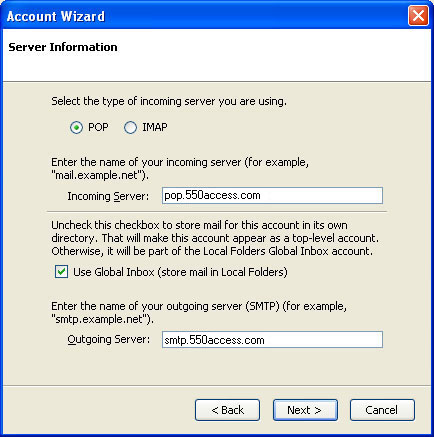
5. Fill in the information as shown
below.
Incoming: pop.550access.com
Outgoing: smtp.550access.com
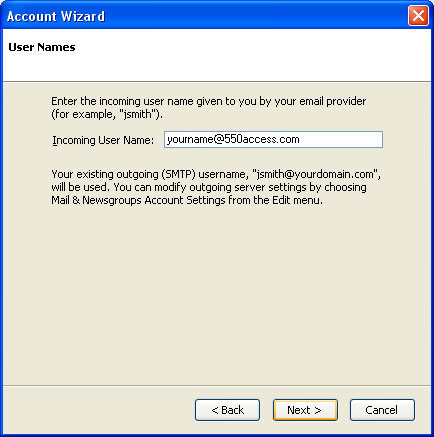
6. Enter your email address as shown below. Substitute
yourdomain.com with 550access.com Click the Next button.
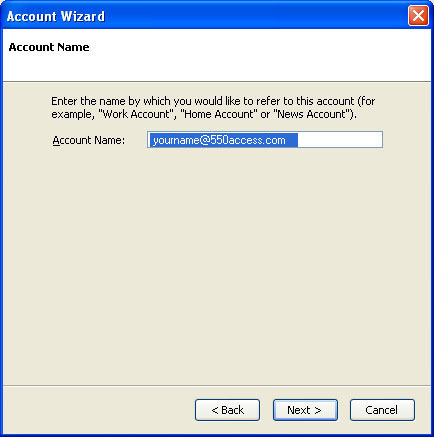
7. Enter a name for the account.
You can specify any desirable name for the account such as “my email account”
(anything you want) . Click the Next > button.
8. Click the Finish button to complete the setup of your
new e-mail account.
 |