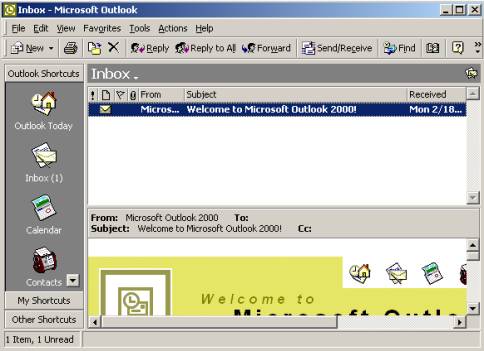
1. Open Microsoft Outlook 2000.
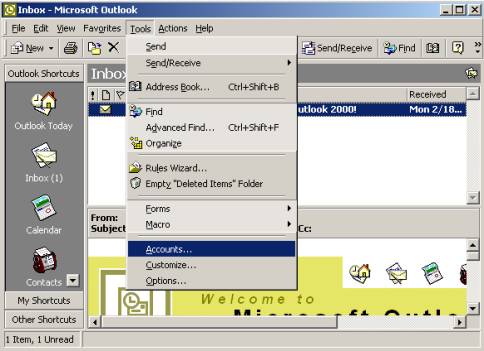
2. From the Tools menu, select Accounts.
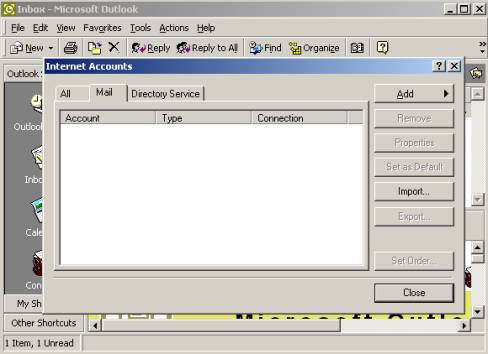
3. Click on the Mail tab, and then click on Add.
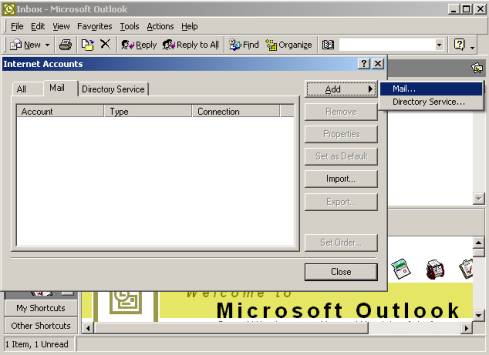
4. Click on the option Mail.
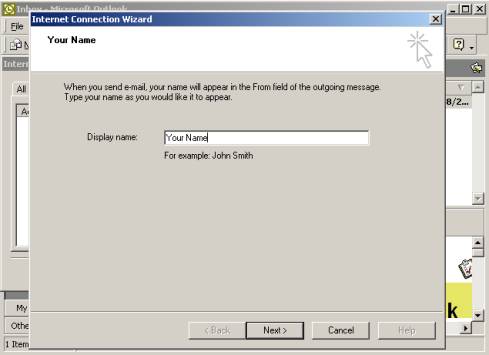
5. Type in your name in the Display name box, and then click on Next.
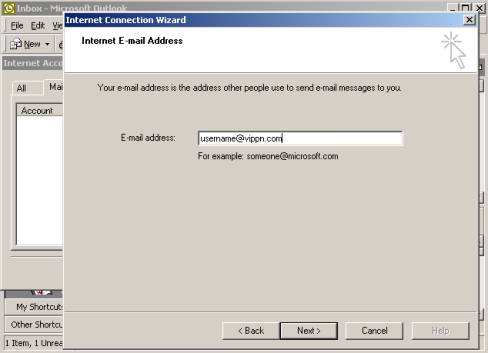
6. Type in your VIP PowerNet email address and then click on Next.
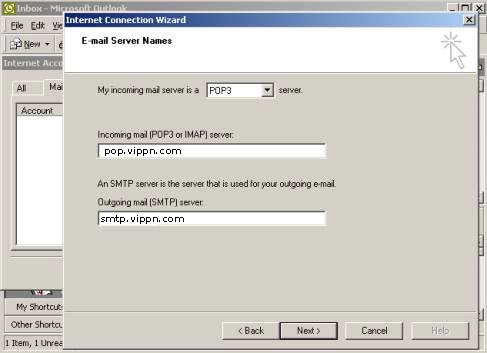
7. Type in pop.vippn.com for the Incoming mail server and smtp.vippn.com for the Outgoing mail server, and then click on Next.
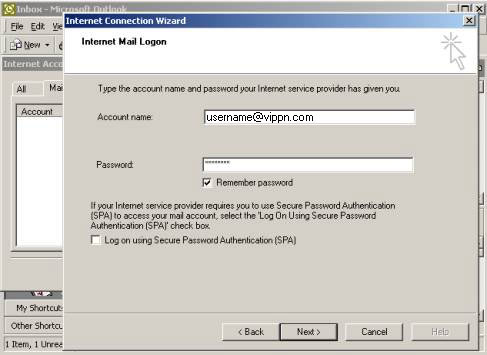
8. Type in your VIP PowerNet Username and Password, and then click on Next.
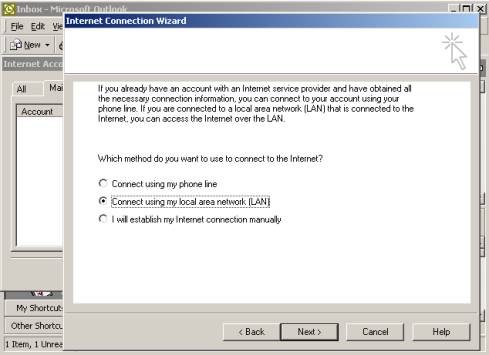
9. Select the option Connect using my local area network (LAN) and then click on Next.
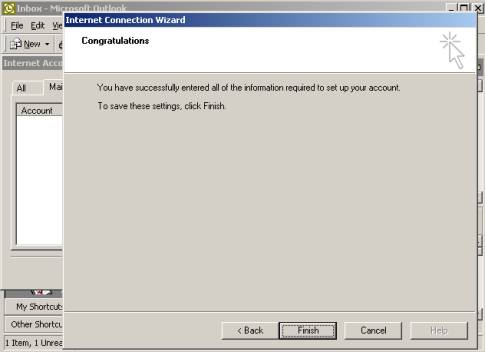
10. Click on Finish.
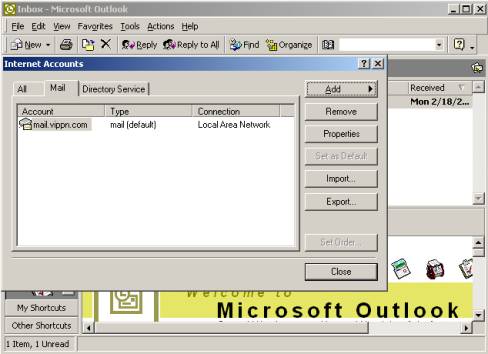
11. Click on Close to close the Internet Accounts dialog box.
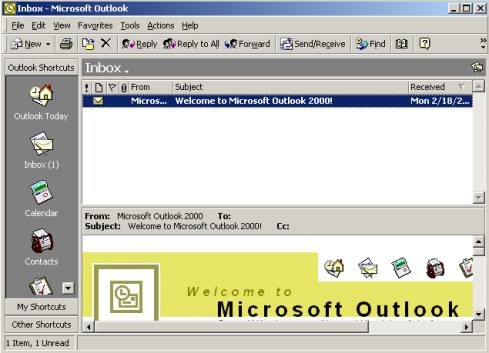
12. Your VIP PowerNet E-mail account is now configured to send and receive emails. Click on New to send mail or click on Send/Receive to send or receive your emails.
|